


Sore Back From Office Chair: Causes, Fixes, and When to Upgrade
Key Takeaways
-
Most cases of sore back from office chair stem from three factors: poor posture, incorrect chair adjustments, and prolonged sitting without movement breaks.
-
Quick fixes you can apply immediately include adjusting seat height so feet rest flat on the floor, positioning the backrest forward for lumbar region contact, setting your computer screen at eye level, and taking a 2-3 minute break every half hour.
-
You don’t always need a new chair right away, affordable add-ons like lumbar pillows, a seat cushion, and an adjustable footrest can dramatically reduce pain without major investment.
-
Diagnosing whether the chair itself is the problem requires checking for design flaws: no proper lumbar support, fixed armrests, worn cushions, or wrong size for your body.
-
If back pain persists for more than 2-3 weeks despite making adjustments, consult a healthcare professional and consider investing in a good ergonomic office chair designed for extended periods of use.
Introduction: Why Your Office Chair Is Making Your Back Sore
Picture this: it’s 5 PM, you’ve been at your desk for eight hours, and your lower spine feels like it’s been compressed in a vice. You stand up, and your back muscles protest with that familiar stiffness. You’re not alone, millions of office workers experience this daily ritual of discomfort that builds throughout the workday.
Here’s what’s happening inside your body. When you sit in an office chair, especially in a slouched position, the pressure on your lumbar discs increases by roughly 30% compared to standing. This pressure escalation occurs because the natural curve of your lower spine flattens without proper support. Your spinal discs, which normally act as cushions between vertebrae, get squeezed unevenly. The back muscles that should support your spine fatigue and tighten. Over hours of static posture, this creates the perfect recipe for a sore back from office chair use.
The good news is that this problem usually comes down to three fixable factors: chair design, poor adjustment, and lack of movement. In this article, you’ll first get fast fixes you can apply while reading. Then we’ll walk through detailed adjustment steps, show you how to spot a bad chair, explore budget-friendly hacks, and help you decide when it’s finally time to replace your traditional office chair with something better.
Immediate Relief: Fast Fixes If Your Back Hurts Right Now
If you’re reading this with an aching back, you need something you can do immediately, not after finishing a 15-minute article. Here’s a quick routine you can complete in under three minutes.
Stand up right now and walk for about two minutes. Then, standing beside your chair, place your hands on your hips and gently arch slightly backward, holding for 5-10 seconds. Follow this with a chest-opening stretch: clasp your hands behind your back, squeeze your shoulder blades together, and slowly open your chest by lifting your hands slightly lifted away from your body. These gentle stretches help counteract the forward-hunching position that creates extra pressure on your spine.
For temporary lumbar support, grab a small towel or blanket and roll it tightly. Place it behind your lower back at approximately belt height. This fills the gap between your lower spine and the backrest, helping maintain your natural curve. It’s not a permanent solution, but it provides immediate pain relief.
Now reset your sitting posture: slide your hips all the way back in the chair, plant your feet flat on the floor, relax your shoulders down and back, and adjust your gaze so your head faces forward rather than tilted down toward your laptop. These are short-term relief strategies. The rest of this article focuses on preventing the soreness from coming back.
How Sitting in an Office Chair Causes a Sore Back
Understanding why sitting hurts helps you fix the root cause rather than just treating symptoms. Static posture remaining in one position for 30-40 minutes or longer leads to muscle fatigue, disc compression, and overall stiffness. Research suggests that tendons and ligaments begin losing flexibility after just 20 minutes of inactivity, contributing to that locked-up feeling when you finally stand.
Your lumbar spine naturally curves inward (this is called lordosis). When you slouch forward or perch at the front of your seat, this curve flattens. Your spinal discs, which work like cushions between vertebrae, experience uneven loading. The back muscles and spinal ligaments that normally support your upright posture get overstretched on one side and compressed on the other. Over hours, this creates inflammation, tension, and pain.
Three main posture problems drive most office-related back soreness. First, leaning forward toward the computer screen, which pulls the upper back out of alignment and forces the lower spine to compensate. Second, perching on the front half of the seat, which removes contact with the backrest and leaves your lumbar region unsupported. Third, leaning to one side to reach items like a mouse or phone, which creates asymmetrical stress on the spine.
The shift toward working from home since 2020 has intensified these issues. Many people spend long periods in dining chairs, cheap task chairs, or whatever furniture was available, none of which were built for 8-hour workdays. Estimates suggest 40% of chronic back pain sufferers log extended daily computer hours, highlighting just how common this problem has become.
Step-by-Step: Adjust Your Office Chair to Reduce Back Pain

This section provides a practical, chronological adjustment checklist you can complete in 5-10 minutes. These steps mirror professional ergonomic assessments but are simplified for home and office workers without specialized equipment.
Before touching your chair, consider your desk height first. If you have an adjustable desk or keyboard tray, set it so your forearms can rest parallel to the floor while typing. Then match your chair settings to that workspace. If your desk height is fixed, you’ll adjust the chair and add supports as needed.
1. Elbow and Desk Height: Setting Chair Height Correctly
The elbow measure is your starting point for proper seat height. Sit close to your desk with your shoulders relaxed and your upper arms hanging naturally at your sides. Adjust the adjustable seat height until your elbows form approximately a 90-degree angle when your hands rest on the computer keyboard.
If this position raises your chair so high that your feet leave the floor, don’t sacrifice your elbow position. Instead, plan to add an adjustable footrest or a sturdy box to support your feet and thighs. A desk that’s too high relative to your chair forces the shoulders up toward the ears, creating extra stress that leads to neck pain and upper back soreness by day’s end.
If you have an adjustable desk, lower it. If you have a keyboard tray, adjust it downward. If neither is possible, adjusting the chair height and adding foot support is your workaround.
2. Thigh Position: Getting the Right Seat Height and Angle
The thigh measure check helps verify proper seat positioning. While sitting normally with your back against the backrest, try to slide two or three fingers, about a finger width each under your thigh at the leading edge of the seat. If you can’t fit your fingers, the seat is too low or angled incorrectly. If your entire hand slides under easily, the seat may be too high.
Too much pressure under the thighs compresses blood vessels and nerves, leading to numbness, tingling, and aching that extends into the lower back. Check your tilt tension adjustment if your chair has one, and set the seat pan so it’s either flat or tilted very slightly downward at the front edge. This prevents you from sliding forward and losing back support.
Users shorter than about 5’4” often need an adjustable footrest to prevent their feet from dangling. When feet don’t rest on a stable surface, the legs pull on the pelvis, creating imbalance that aggravates the lower spine.
3. Calf Clearance: Checking Seat Depth
Seat depth matters more than most people realize. Perform the calf measure by sitting all the way back in your chair so your back contacts the backrest. Then try to slide a clenched fist between the back of your calf and the front edge of the seat.
If your fist doesn’t fit, the seat is too deep. This forces you to either slouch forward to find a comfortable position or perch at the front without back support, both of which strain the lumbar discs. Many standard office chairs have seats designed for taller users, leaving people under about 5’6” struggling with depth that doesn’t match their body.
Solutions include adjusting the seat depth forward if your chair allows, moving the backrest forward, or using a lumbar pillow that effectively shortens the usable seat depth by pushing your back further forward.
4. Low Back Support: Protecting the Lumbar Curve
The natural curve of your lower back is essential for distributing load across your spine. When this curve flattens, typically from slouching, you place significantly more stress on discs, joints, and ligaments. Research indicates that slouching can increase disc compression well beyond the levels experienced when standing.
If your chair has built-in lumbar support, adjust it so the most prominent part sits at approximately belt height. This fills the gap between your lower back and the backrest, supporting your spine’s natural curve. If your chair lacks adjustable support, a lumbar pillow or even a rolled towel serves the same purpose.
The key mistake to avoid: sitting on the front half of the seat. This removes all contact with the backrest and forces your lumbar region to hold your entire torso upright without assistance, leading to muscle fatigue and poor sitting posture within minutes.
Experiment with small adjustments in lumbar height and firmness over several days. The most comfortable setting may not feel “normal” initially because your body has adapted to a slouched position.
5. Eye Level and Screen Height: Saving Your Upper Back and Neck
Here’s a simple test. Sit back in your chair, relax your neck completely, close your eyes, then open them. Where your eyes naturally land should be the upper third of your computer screen, not the keyboard or your lap.
When the screen is too low, you unconsciously crane your neck forward to see it. This forward head posture tightens the upper back muscles, strains the neck, and contributes to soreness that extends down between the shoulder blades. Over long stretches of the workday, this positioning can become habitual and increasingly painful.
Raise your monitor using a proper stand or, if unavailable, a stable stack of books. Position the top edge of the screen roughly at eye level, about an arm’s length away. For laptop users, the ideal setup pairs an external monitor or laptop stand with a separate keyboard and mouse. This keeps your screen high while your hands stay in a natural position for the computer keyboard.
6. Armrests and Shoulder Relaxation
Properly positioned armrests take load off the shoulders and upper spine. The armrest adjust height should position your forearms so they rest lightly while your shoulders stay relaxed, not shrugged up toward your ears and not hanging down with no support.
Set the armrest height so your elbows form approximately a right angle when typing. Move armrests inward or outward so your elbows fall naturally under your shoulders, not pushed wide or squeezed together.
One common problem: armrests that prevent you from getting close enough to the desk. If this forces you into leaning forward with your back unsupported, it’s better to lower the armrests completely or temporarily not use them until you can find a chair with better adjustability.
Is Your Office Chair the Problem? Common Design Flaws That Cause Soreness
Sometimes pain comes from how you’re using the chair. Other times, the chair itself has inherent design problems that no amount of adjustment can fix. Distinguishing between these situations helps you decide whether to invest in accessories or start shopping for a replacement.
Signs that your chair design is fundamentally wrong include: no lumbar support whatsoever, a very thin or collapsed seat cushion where you can feel the hard base, fixed armrests that can’t be adjusted to your body, and a backrest that won’t recline or tilt. Many budget task chairs purchased quickly during 2020-2021 for home offices fall into this category, they were never built for full-time daily use over long periods.

Poor Lumbar Support and Flat Backrests
Traditional chairs with flat backs, including dining chairs pressed into office service, fail to support the lower spine’s natural curve. Without something filling the gap between your belt line and the backrest, users unconsciously slide forward or slump forward to find a position that feels comfortable. This slouch forward posture worsens low back soreness over hours.
Practical add-ons can help: a dedicated lumbar pillow, a rolled towel secured with rubber bands, or a contoured back support that straps to the chair. These create the curve that the backrest lacks.
However, if the backrest is permanently reclined at an awkward angle or locked perfectly upright with no adjustment, long-term comfort will likely require changing the chair entirely.
Wrong Seat Height Range and Poor Leg Positioning
Chairs with very limited height adjustment may never allow both flat feet and proper elbow height simultaneously for certain body sizes. This is particularly common with inexpensive chairs that use a minimal-range gas cylinder.
Symptoms include: calves pressing hard into the seat edge, feet dangling with no support, or knees positioned much higher than hips. All of these create poor leg positioning that transfers strain directly to the lower back.
Interim fixes exist: footrests help shorter users, desk risers work for taller users, and adjustable keyboard trays can bring the work surface to the right height. But if the chair’s hydraulic mechanism can’t bring the seat into a workable range for your height, the chair simply isn’t a good long-term match for your body.
Fixed or Misaligned Armrests
Fixed armrests, those that don’t adjust at all can force shoulders upward or outward, creating chronic neck, shoulder, and upper back tension. Many budget chairs have armrests that can’t move in or out, causing users to angle their wrists awkwardly and twist their spine to reach the keyboard.
Options for coping include padded armrest covers (to reduce hardness), adjusting desk height, or in some cases removing the armrests entirely if they can’t be made to fit your body. Any adjustable ergonomic office chair worth considering offers at least height and width adjustment for armrests.
Worn Cushions and Non-Breathable Materials
A seat cushion that has compressed over several years of daily use no longer distributes weight evenly. This creates sharp pressure points directly under your sit bones, leading to discomfort that radiates into the lower back and hips. Check for visible sagging or the sensation of feeling the hard base through what remains of the cushion, clear signs the foam has reached the end of its useful life.
Non-breathable vinyl or very dense foam traps heat and sweat, encouraging fidgeting and position changes that often worsen posture. A replacement seat cushion made from high-density foam or memory foam with breathable fabric offers an affordable way to restore comfort without buying an entirely new chair.
Limited Recline and No Tilt Mechanism
Being locked into a perfectly upright position for eight hours isn’t ideal for your spine. Micro-movements and occasional leaning back help decompress the vertebrae and shift load distribution. A basic tilt or synchro-tilt mechanism allows the backrest to move with you, sharing stress between your back and the seat.
Chairs with no recline capability or a permanently locked upright position often cause mid-back fatigue and that stiff, compressed feeling at the end of the workday. If your chair can’t recline at all, compensate with more frequent standing breaks and movement until you can upgrade to a chair with proper tilt functionality.
Simple Upgrades: How to “Hack” Your Current Chair for Less Back Pain
Not everyone can replace their chair immediately. Maybe the budget isn’t there, or you’re waiting for employer approval, or you want to try less expensive options first. This section covers accessories that can significantly reduce soreness for a fraction of the cost of a new ergonomic chair.
These add-ons won’t fix every design problem, but for many people, they bridge the gap between a chair that causes daily pain and sitting comfortably through an entire workday.
Lumbar Support Pillows and DIY Rolls
Lumbar pillows come in several styles: flat cushions with a central bulge, fully contoured designs that wrap around the lower back, and strap-on versions that attach directly to your chair’s backrest. Choose based on your chair’s existing shape and how much support you need.
Position any lumbar pillow so the most supportive part sits at your belt line, the lower back, not the mid-back or upper hips. Getting this placement wrong can actually make posture worse by pushing you forward or creating an uncomfortable arch.
For immediate relief without purchasing anything, roll a small towel or blanket tightly and secure it with rubber bands or hair ties. Place it behind your lower back when you sit. This DIY approach works surprisingly well as a temporary solution while you evaluate whether to invest in a proper lumbar accessory.
Test any pillow for a full workday or two before deciding if it’s right for you. The correct size and firmness varies by individual.
Seat Cushions and Coccyx-Relief Pads
A thicker, supportive seat cushion can elevate you slightly, reduce pressure on the tailbone, and dramatically improve comfort on hard or worn seats. Look for cushions made from high-density foam that maintains shape over months of use rather than compressing flat within weeks.
Coccyx cushions feature a U-shaped cutout at the back, designed specifically for people with tailbone sensitivity or pain. These alleviate pressure on the coccyx while still supporting the sit bones.
The cushion should be firm enough to prevent “bottoming out” (sinking through to the hard seat base) but not so hard that it creates new pressure points. After adding any cushion, recheck your chair height, the added elevation may require lowering the seat or adjusting desk height to maintain proper elbow positioning.
Footrests and Under-Desk Supports
An adjustable footrest or sturdy box helps shorter users keep their feet flat and thighs fully supported when the chair must be raised to achieve proper desk height. Proper foot support removes strain from the lower back by preventing legs from dangling and pulling on the pelvis.
Consider footrests with a slight rocking or tilting feature. This encourages gentle ankle and leg movement throughout the day, improving blood flow and reducing the stiffness that comes from static posture. Even small movements help keep tendons loose and maintain circulation.
After introducing a footrest, reevaluate your leg and knee angles. Aim for approximately a 90-degree bend at the knees, with thighs roughly parallel to the floor.
Monitor Risers and Laptop Stands
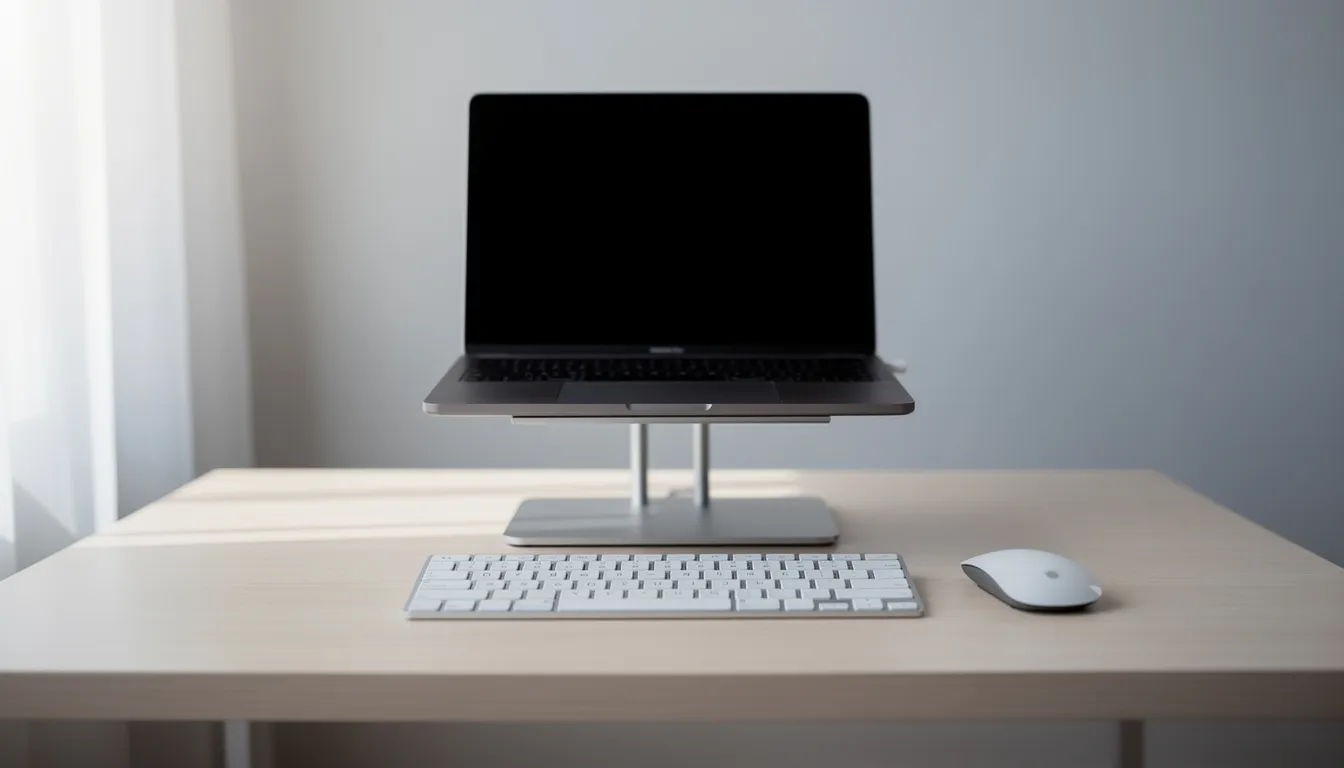
Raising your screen to eye level is often the single most impactful change for people working on laptops or low monitors. The chronic forward head posture caused by looking down creates cascading problems through the neck, shoulders, and upper back.
Simple solutions include under-monitor risers (available at any office supply store), adjustable laptop stands, or even a stable stack of hardcover books. Any of these can bring a screen up to proper height within minutes.
For laptop users, pair the stand with an external keyboard and mouse. This allows your screen to stay high while your hands remain low in a natural typing position. Position the top of the screen roughly at or slightly below eye level, about an arm’s length away for comfortable viewing.
Work Habits That Make or Break Your Back (Even in a Good Chair)
Even the most expensive ergonomic chair cannot prevent soreness if you remain frozen in place for hours or consistently work in poor posture. Your spine is designed for movement, your muscles, discs, and joints all need periodic position changes to stay healthy and pain-free.
The research is clear: breaking up sitting time with regular movement significantly reduces stiffness, fatigue, and long-term injury risk. The habits below don’t require gym memberships or complicated routines, just awareness and consistency.
Movement Breaks and Microbreaks
The “30-30” rule offers a simple framework: every 30 minutes of sitting, stand or walk for at least 30-60 seconds. This brief interruption restores circulation, gives compressed discs a chance to rehydrate, and prevents the muscle tension that builds during static postures.
Use phone alarms, calendar reminders, or dedicated break apps to prompt movement, especially during long meetings or periods of focused work when time disappears. Many people find that without external reminders, an entire morning passes without a single position change.
Incorporate natural movement opportunities into your daily routine: stand during phone calls, walk to refill water, use stairs instead of elevators, or take a short walk to deliver messages rather than sending emails. These tiny changes maintain circulation and reduce the accumulated load on your spine throughout a long workday.
Simple Desk Stretches and Core Engagement
A few simple stretches performed daily can counteract the forward-bending, shoulders-rounded position of computer work. Try these at your desk:
Seated spinal twist: While sitting, place your right hand on your left knee and gently twist your torso left, looking over your left shoulder. Hold for 15-20 seconds, then repeat on the other side.
Chest opener: Stand up, clasp your hands behind your back, and squeeze your shoulder blades together while slowly open lifting your hands slightly lifted away from your body. Hold for 10-15 seconds.
Gentle neck stretches: Tilt your head toward one shoulder, hold for 10 seconds, then repeat on the other side. Follow with gentle chin tucks, pulling your chin straight back as if making a double chin.
Outside work hours, light core exercises like planks and bird-dogs a few times per week build the muscular endurance that supports your spine during sitting. You don’t need an elaborate fitness routine, consistent, small efforts improve posture and resilience to daily sitting demands.
When to Replace Your Office Chair (and What to Look For)
Despite cushions, careful setup, and diligent break habits, some chairs simply aren’t built for full workdays. They’ll keep causing soreness no matter what adjustments you make.
Clear signs it’s time to replace your chair include: persistent back pain after 2-3 weeks of optimized adjustments, broken or non-functional adjustment mechanisms, a cushion that has collapsed and can’t be restored with add-ons, or a fundamental size mismatch between the chair and your body dimensions.
Important note: severe or radiating pain, pain that travels down your leg, into your foot, or causes numbness and weakness should be evaluated by a healthcare professional before assuming a new chair will solve everything. These symptoms can indicate neurological conditions like disc herniation that require medical attention beyond ergonomic improvements.
Essential Features for a Back-Friendly Chair
When shopping for a new chair, prioritize these must-have adjustments:
|
Feature |
What to Look For |
|---|---|
|
Seat height range |
Covers roughly 5’2” to 6’2” users comfortably |
|
Lumbar support |
Adjustable height and depth to match your lower back |
|
Back tilt |
Recline capability with adjustable tilt tension |
|
Armrests |
Height, width, and ideally depth adjustment |
|
Seat depth |
Adjustable or appropriate for your leg length |
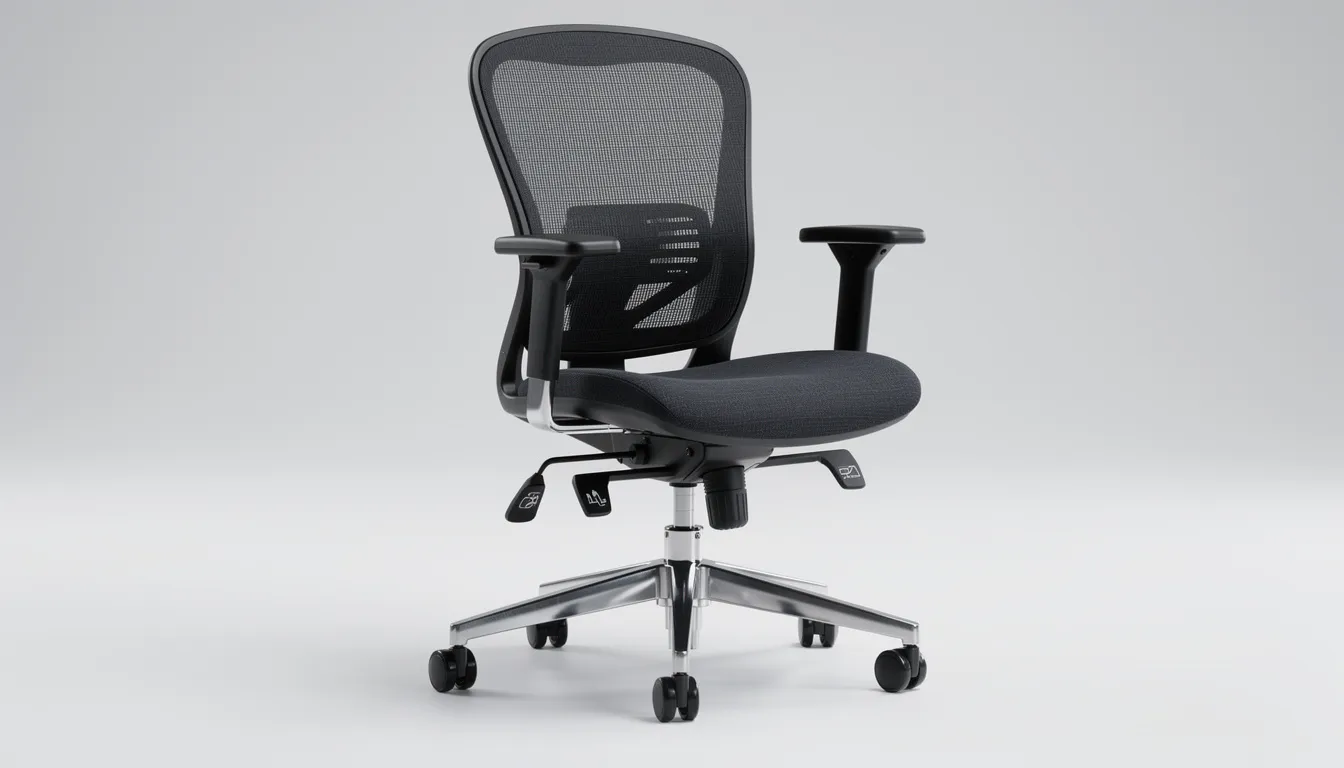
Materials matter too. Breathable mesh backs prevent heat buildup during long periods. High-quality foam cushions retain shape over years of use rather than compressing flat. A stable five-point base with smooth-rolling casters reduces strain when repositioning.
Choose seat dimensions that match your build: enough width for your hips without excess, and a depth that allows 2-3 fingers (the finger width test) between your calf and the seat edge when sitting back against the lumbar support.
Check return policies and trial periods before purchasing. It can take a week or more of full-time use to judge whether a chair truly reduces your soreness or creates new problems.
Budgeting and Prioritizing Comfort
An adjustable ergonomic office chair should be viewed as a long-term health investment. Most office workers sit 1,800-2,000+ hours per year. Spread across 5-10 years of use, even a premium chair costs remarkably little per hour of comfortable, pain-free work.
When working with limited budget, prioritize core ergonomic features over appearance or extras like built-in speakers or massage functions. Proper lumbar support, good adjustability, and appropriate sizing matter far more than leather upholstery or designer aesthetics.
Consider a phased approach: first optimize your current setup with the accessories discussed earlier, then upgrade to a fully-featured chair when budget allows. This strategy provides immediate relief while you save for a proper solution.
Document your back symptoms by tracking what hurts, when it hurts, what helps, and what doesn’t. This record guides your choice of next chair and provides useful information for conversations with employers, HR departments, or healthcare providers.
Ready to Stop Ending the Workday With Back Pain?
Your office chair should support your body, not leave you stiff, sore, and counting the minutes until you can stand up. If you’ve tried adjusting your seat height, adding lumbar support, improving your screen setup, and taking regular movement breaks but your back still hurts, it may be time to upgrade your workspace.
A well-designed ergonomic office chair can make long workdays feel easier by supporting your lower back, improving posture, reducing pressure on your hips and thighs, and helping you stay comfortable through hours of focused work.
Don’t wait until daily soreness turns into a bigger problem. Choose a chair built for your body, your desk setup, and the way you actually work.
Explore our ergonomic office chairs today and find the support your back has been asking for.
FAQ
The following answers address common questions not fully covered above. Remember that this information is general guidance and doesn’t replace personalized medical advice for ongoing or severe back pain.
How long should I wait before seeing a doctor about back pain from my office chair?
Mild soreness that improves within a few days of better workspace setup and regular breaks is usually not urgent. However, if pain persists beyond 2-3 weeks despite making adjustments, worsens over time, or interferes with sleep or daily activities, schedule an appointment with a healthcare professional.
Seek immediate medical attention for these warning signs: pain radiating down a leg, numbness or weakness in the legs or feet, or any loss of bladder or bowel control. A professional assessment can rule out serious conditions and provide personalized guidance that goes beyond chair adjustments.
Is a standing desk better for my back than an office chair?
Standing desks reduce total sitting time, which benefits the back, but standing all day creates its own problems like leg fatigue, foot pain, and increased strain on the lower back for some people. The solution isn’t choosing one or the other; it’s alternating between positions throughout the day.
If you use a height-adjustable desk, try standing for 15-20 minutes every hour and adjust based on comfort. Use an anti-fatigue mat when standing. Even with a standing option, a good ergonomic office chair remains important because most people will spend significant portions of the day seated.
Are kneeling chairs or exercise balls good alternatives to office chairs?
Kneeling chairs encourage a more upright posture and open hip angle, which some people find helpful for short tasks. However, they typically lack back support and may cause knee discomfort during extended periods. They work better as occasional alternatives, perhaps 30-60 minutes at a time, rather than all-day seating.
Exercise balls introduce constant micro-movements that can engage core muscles, but they’re inherently unstable and may increase fatigue or risk of falls. They also lack any back support. Like kneeling chairs, exercise balls work best for brief periods as supplements to (not replacements for) a properly adjusted ergonomic chair that provides stability, adjustability, and proper support.
Can stretching alone fix a sore back from my office chair?
Stretching relieves tight muscles and provides temporary pain relief, but it won’t solve problems caused by a badly configured workspace or a chair that fundamentally doesn’t fit your body. Think of stretching as one essential tool in a broader strategy, not a standalone solution.
Long-term relief typically requires combining ergonomic adjustments, regular movement breaks, strengthening exercises, and (when necessary) equipment upgrades. If persistent or severe pain continues despite stretching and workspace improvements, have a medical professional evaluate the situation before starting any aggressive exercise program.
How many hours a day is it safe to sit in an office chair?
Many adults sit 7-10 hours daily, but the risk comes more from long uninterrupted sitting than from total hours alone. Eight hours of sitting with frequent breaks and position changes is significantly less harmful than four hours of continuous, motionless sitting.
Aim to interrupt sitting at least every 30-60 minutes with standing, walking, or stretching. Even in a well-designed chair with perfect adjustments, varying your posture and moving regularly remains essential for maintaining a healthy back. Consider tracking your daily sitting time for a week to build awareness and identify realistic opportunities for change.